
Calendar: connect Google Calendar and arrange serving for events
Most churches already keep their events in Google Calendar. Once an admin connects it, everyone sees them in the Calendar tab, with no second copy to keep up. Events that don’t happen every week, like a Christmas celebration or a retreat, can have their serving arranged right on the event.
Connect Google Calendar
Only admins can connect it.
- Go to Settings → Church info → Calendar and tap Connect Google Calendar. Until it’s connected, the Calendar tab has the same button.
- Choose the Google account that manages the church calendar. On Google’s screen, leave every permission ticked.
- Back in Martha, sit, under Choose a calendar, tap the church’s calendar.
On an Android phone, you’ll land on Google Calendar connected when you’re done. Close that page to go back to the app.
Martha, sit only reads and writes the calendar you chose. To switch, come back to this page and tap another one. Events added or changed in Google Calendar show up within about 10 minutes. Changes made in the app are saved straight to Google Calendar.
- To stop using it: Tap Disconnect. Team members won’t see the calendar, and your Google Calendar itself won’t change. To switch Google accounts, disconnect and connect again.
- If access expires: The calendar says Calendar access has expired. Tap Reconnect and allow access again.
Read the calendar
The Calendar tab has the month at the top and this month’s events below. Swipe the month sideways, or tap the arrows beside its name, to change months.
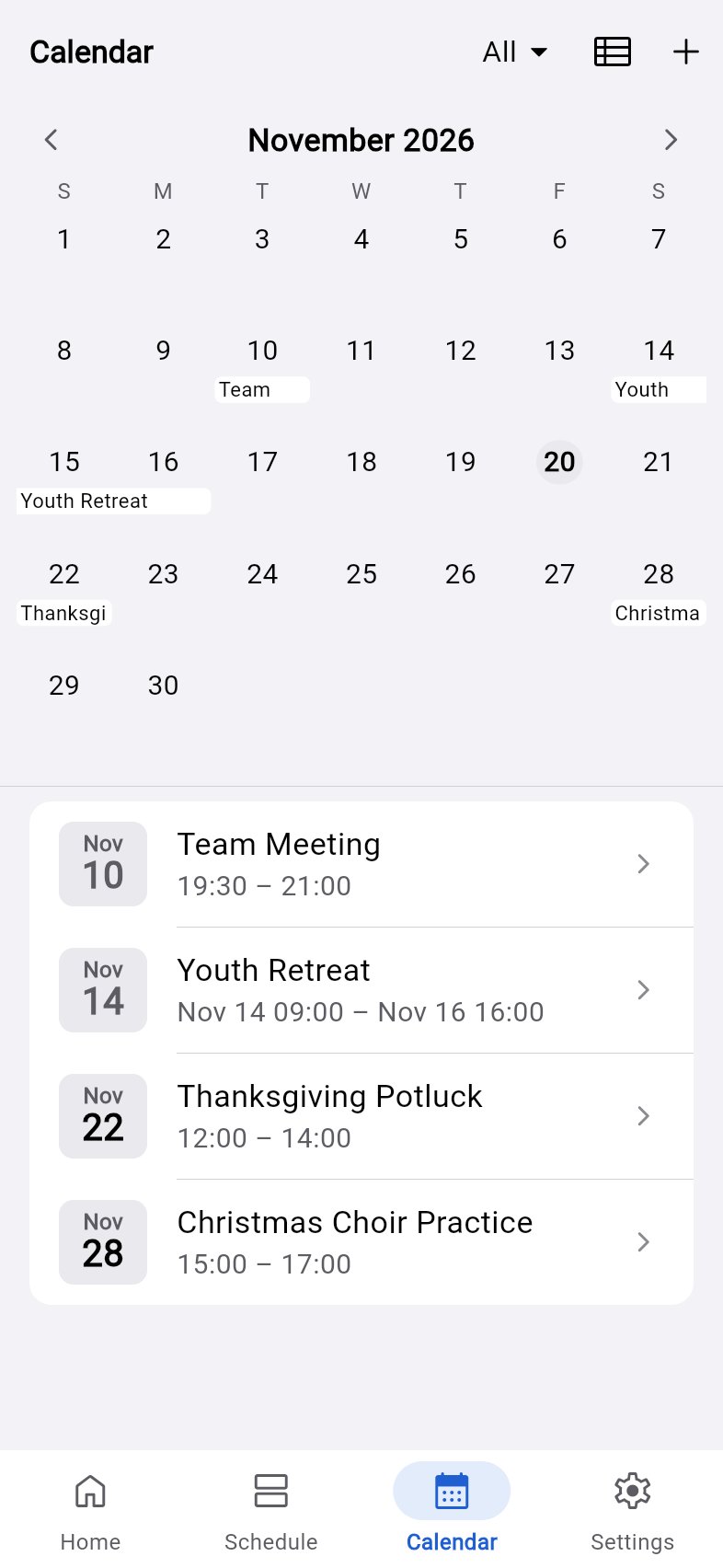
- Tap a day on the month to list only that day’s events. Tap it again to go back to the whole month.
- For just the list, tap List only at the top right to fold the month away.
- The filter at the top right offers Related to me, All, or a single service or ministry. Related to me is the whole church’s events, events of the services, ministries, and small groups you’re in or lead, and events where you’re scheduled to serve. Admins and office staff start on All; everyone else starts on Related to me.
Tap an event to see when and where it is, its details, and its schedule. Upcoming events on Home also lists the next three.
Add an event
Admins, office staff, and leads (small group leaders too) can add events. Tap + at the top right, or tap a day on the month, then New event, and it starts on that day. If you can add to more than one group, you’re first asked Add to which group?
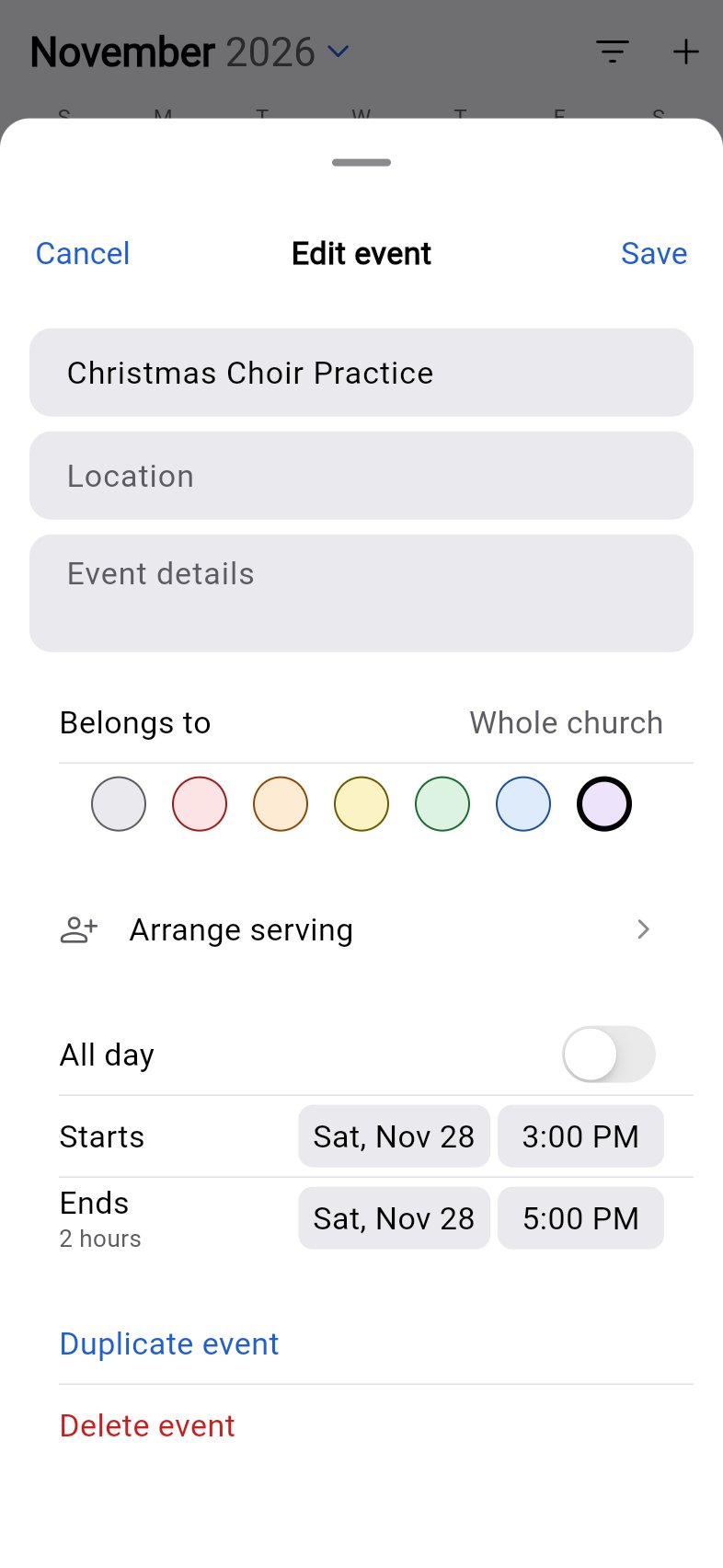
Fill in the event name, location, start, and end, then tap Save. The event is saved to Google Calendar.
- Belongs to: The whole church, or a service, ministry, or small group. Leads can only pick what they lead, and only change events there.
- Change or delete: If you can edit an event, tapping it opens Edit event, with Duplicate event and Delete event at the bottom. Deleted the wrong one? Tap Undo.
- Google’s own events: Birthdays, for example, can only be viewed. Change them in Google Calendar.
Arrange serving for an event
An event can have a schedule of its own, separate from any service. A retreat over several days still has one schedule.
- Tap the event on the calendar, then tap Arrange serving. It’s also there when you add an event: once it has a name, tapping it saves the event first, then opens the schedule.
- Tap Add one and pick one of the church’s roles, or type a name and tap Add. You can also tap Copy from another event to bring in the roles of an earlier event, without the people.
- Tap a role to pick people, just like on a service’s schedule.
Once it’s arranged, the event’s Schedule row shows how many people are on it, and everyone can see it by tapping the event.
- Who can arrange it: Admins, office staff, and leads of the group the event belongs to.
- Notifications: People put on or taken off get a notification. After 10 p.m., it waits until 7 a.m. Serving reminders go by the day the event starts.
- When the event changes: The schedule takes the event’s name and date from the calendar. If the date changes, the people on it are notified. If the event is deleted, the schedule is canceled. Changes made directly in Google Calendar are checked three times a day.
- Repeating events: For a monthly prayer meeting, for example, the next one’s schedule starts with the roles from the last one.
Occasions on the schedule
Occasions are something else: colored tags like Communion or Baptism on one day of a service. They aren’t on the calendar.
- Tag a day: In Schedule, open the day and tap + Occasions under the date (or the tags, if it has some). Tick the ones you want and tap Done. Add occasion at the bottom of the list adds one for that day only. Admins, office staff, and the service’s leads can do this.
- Set up common ones: An admin goes to Settings → Services & ministries, taps a service, then Common occasions → Add occasion. Tap one to rename it, change its color, or remove it.