
Import from a photo: bring in a paper or Excel schedule
If your schedule is already on paper, in Excel, or in Google Sheets, you don’t have to type it into Martha, sit cell by cell. Take a photo or a screenshot and the app reads the dates, roles, and names. You check them, then apply.
This guide is for whoever plans the schedule: admins, office staff, and service or role leads.
Where to start
Go to Schedule and tap Arrange serving at the top right. If you have several services, switch to the one you’re importing at the top. Then tap ⋯ next to Done at the top right and choose Import from photo. You import one service at a time.
For a service where no one is scheduled yet, the top of Schedule says No one is scheduled yet, and you can also tap Import from a photo below it.
Take or choose a photo
Tap Take photo, or tap Choose photo to pick from your library, up to 3 at a time, for example a quarter’s schedule in three screenshots. The first time, you’re asked about Read photos with AI. Tap Agree and continue. Reading takes about a minute.
- Photos of a paper schedule and screenshots of Excel or Google Sheets both work. The dates, roles, and names need to be readable.
- Two people in one cell, separated by “/” or “+”, are read as two people.
- Blank cells and cells that say “TBD” are read as no one scheduled yet.
- Occasions on the sheet, like Communion or Baptism, are read in too.
- If the photo is too large, crop it to just the table and try again.
The page shows how many photos are left this month. It resets on the 1st.
Confirm names
When reading is done, Preview opens. A name that exactly matches one team member, and only one, is matched on its own. The rest are listed at the top under Confirm names before importing:
- Suggested: the name on the sheet might be one of these people, for example Daniel Chen for “Daniel Chan”.
- No one by this name: no one in your church has this name.
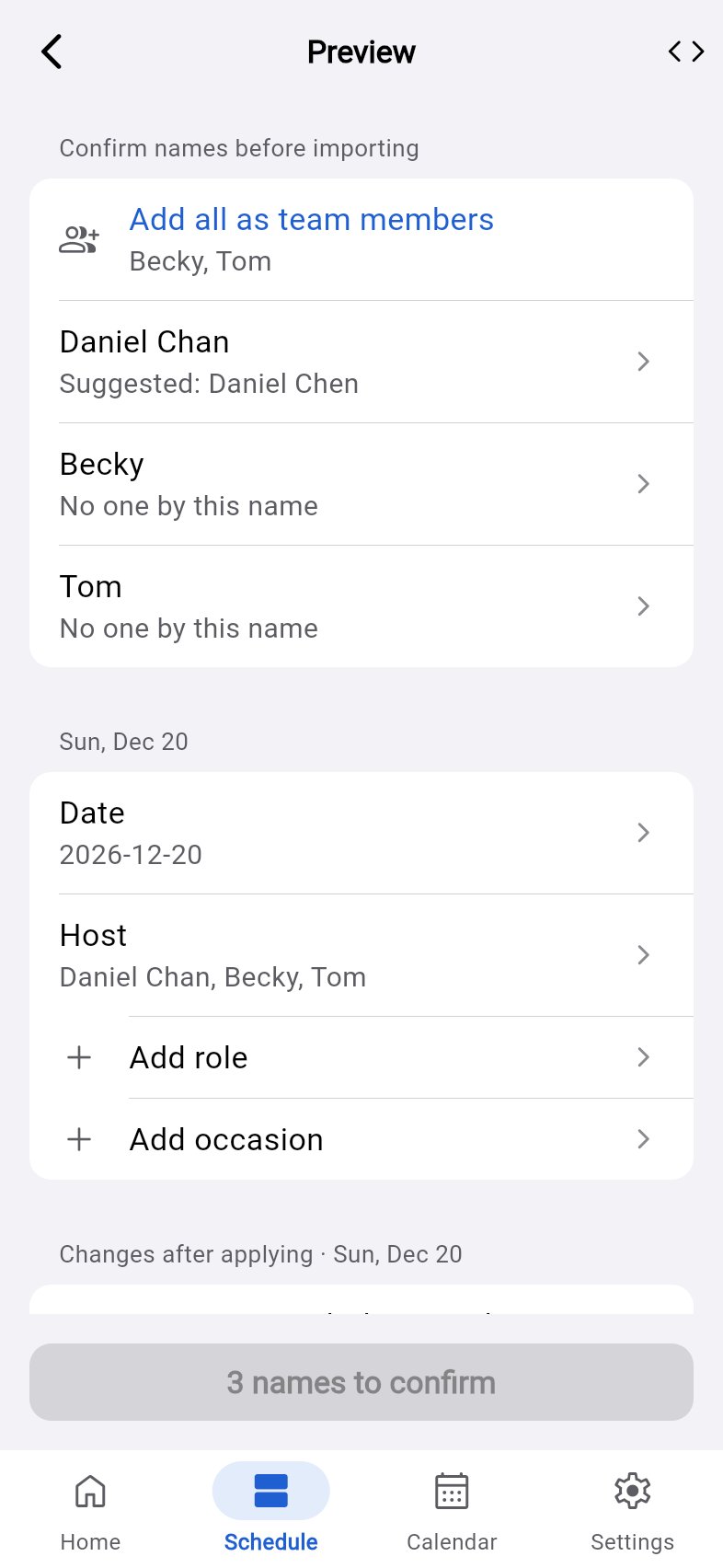
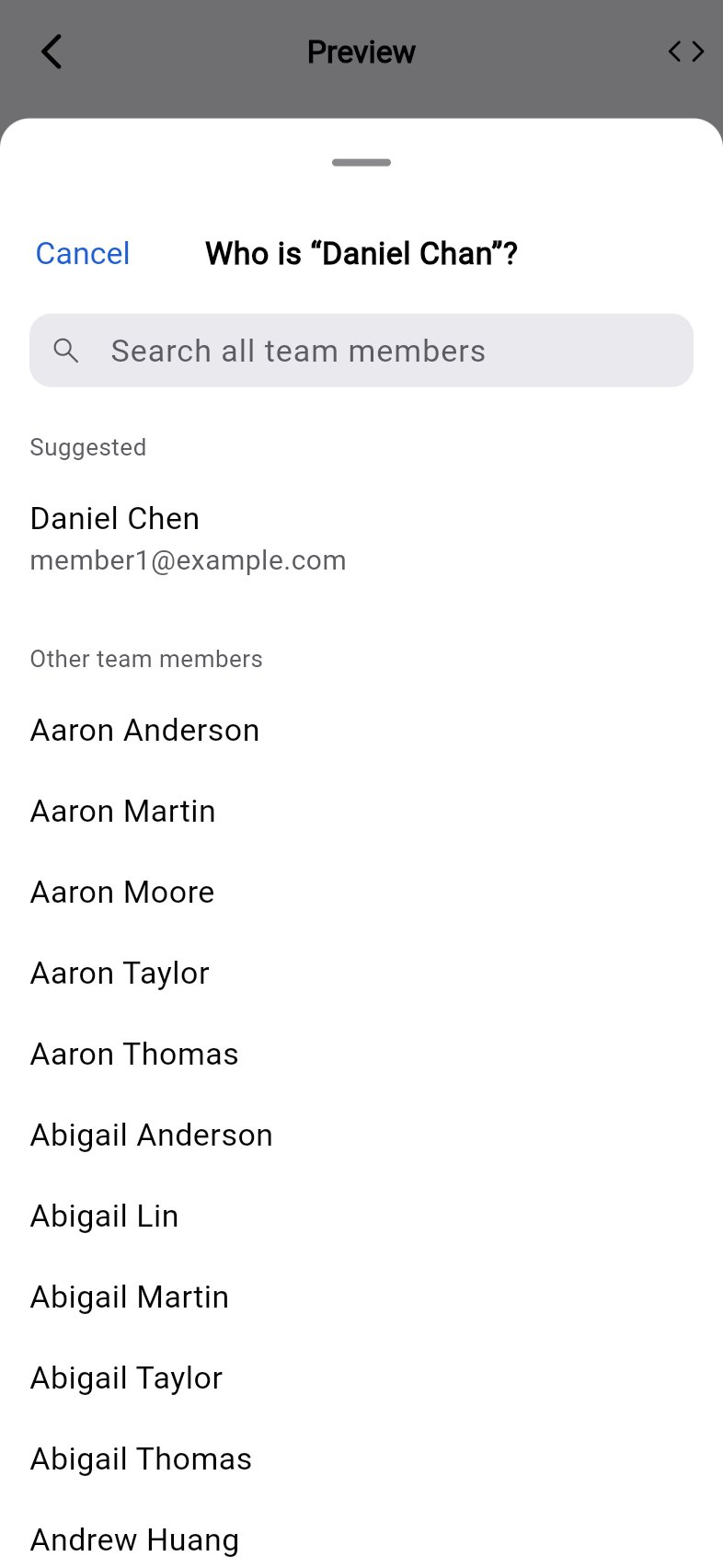
Tap a name to open Who is “…”?:
- Suggested people are at the top, other team members below, and you can search. Tap someone to match them.
- For someone who hasn’t joined yet, tap Add “…” as a team member. When they join, the serving you arranged is theirs.
- For someone helping just once, tap Fill in “…” just this once.
- If the sheet has a nickname or a typo, type the right name in the search box. If someone in your church has that name, tap them. If not, choose to add them as a team member or fill them in just this once, using the name you typed.
If the sheet has two or more names that no one in your church has and that look like no one, an Add all as team members row appears at the top. Tap it to add them all.
Fix what was misread
The preview has a section for each day, listing the roles and names it read. If something is wrong, tap that row to change it. If something is missing, tap Add role or Add occasion.
- For a day whose date couldn’t be read, the heading says Date unclear. Tap Date and pick the day.
- What needs fixing is shown in red on its row, and the button says how many things are left to fix, like 2 things to fix.
- Past dates aren’t imported. They’re listed under Past dates, not imported.
Apply
At the bottom, Changes after applying lists what changes on each day, for example “Host: TBD → Daniel Chen”. Only the roles on the sheet are replaced. The other roles that day stay as they are.
If the sheet has a role the service’s settings don’t, an admin can tap Add role: … under Fix church settings (optional) to add it to the settings.
Once every name is confirmed and nothing is left to fix, tap Apply to schedule. A message like Imported 8 days appears at the bottom. Tap Undo right away to take the whole import back.
After importing
- Importing doesn’t notify anyone.
- People you added as team members don’t have an account yet. If they join with the invite link using the same name as on the schedule, they’re asked whether it’s them. Tapping That’s me brings over the serving arranged for them. See Getting started: create your church and invite your team.
- When a role lead imports, only the role they lead comes in. Occasions aren’t imported, and they can’t add team members.
Out of photos, or reading failed
Tap Advanced → Copy AI prompt. Send the prompt and the photo to an AI you use yourself, paste its whole reply into the box below, and tap Preview. From there it works the same as a photo import, and it doesn’t count toward your photos. The prompt includes your team members’ names.