
Team members: see when you serve, find a cover, mark days you can’t serve
This guide is for team members who joined with an invite link. There’s nothing to set up. Open the app and your serving is there.
Right after you join, if Home shows a welcome card and no serving, an admin hasn’t added you to a service yet. Once they do, you’ll see the schedule. If your name was already on the schedule, tap Already on the schedule? on the card, pick which one is you, and tap Send. Once an admin confirms, the serving already arranged for that name becomes yours.
Home
When you’re serving lists each day you’re scheduled, in date order, with the service and the role. Days from different services are listed together.
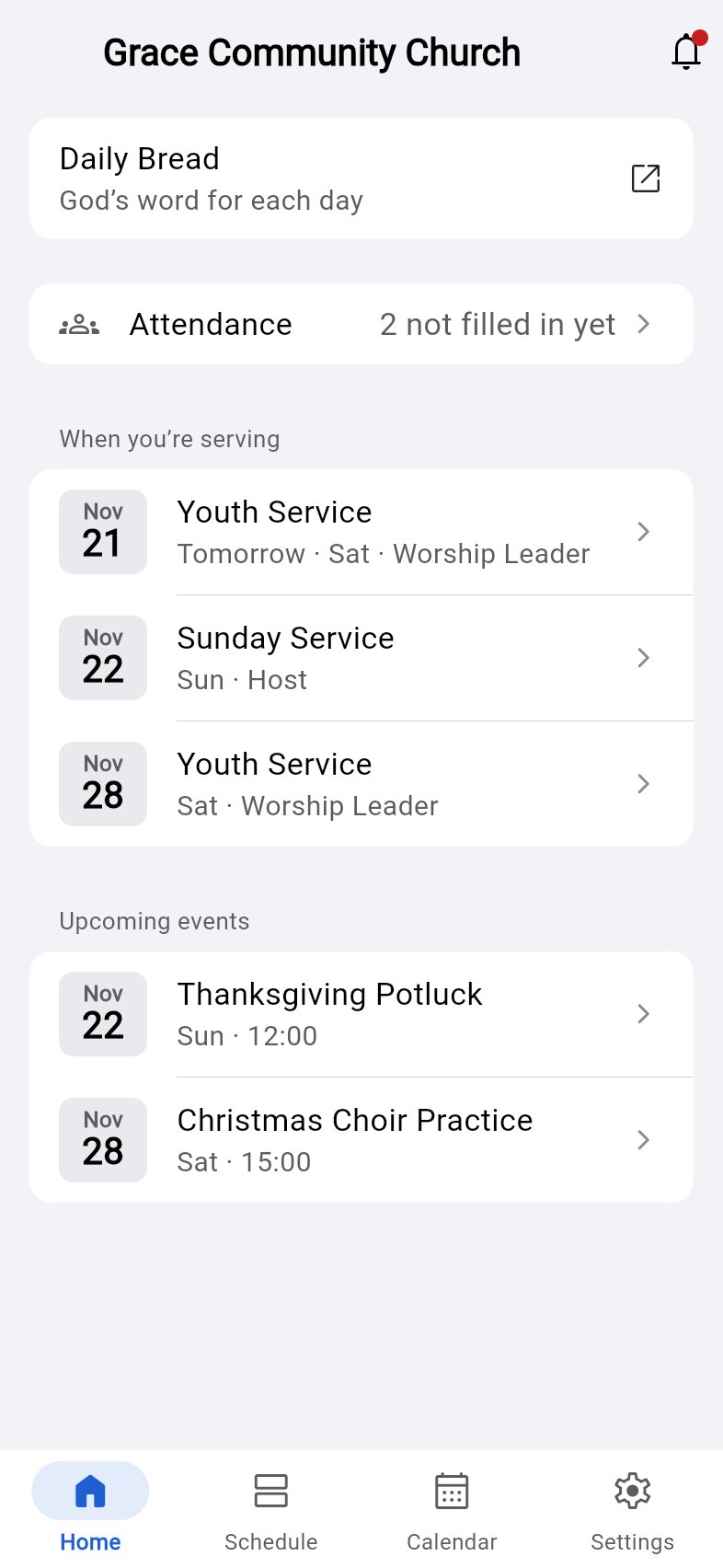
Tap a day to open that day’s schedule and see who else is serving with you. Your name is in bold.
To see several weeks at once, go to Schedule and tap Table at the top right. The Schedule tab only has the services you’re on. If you also serve at another service, it’s still listed on Home and you can open it. To see that service under Schedule, ask an admin or that service’s lead to add you as a team member.
Can’t make it: ask for a cover
At the top of that day’s schedule is You’re on, with I can’t make it on the right. Tap it and choose Ask anyone free. To ask just one person, choose Ask one person.
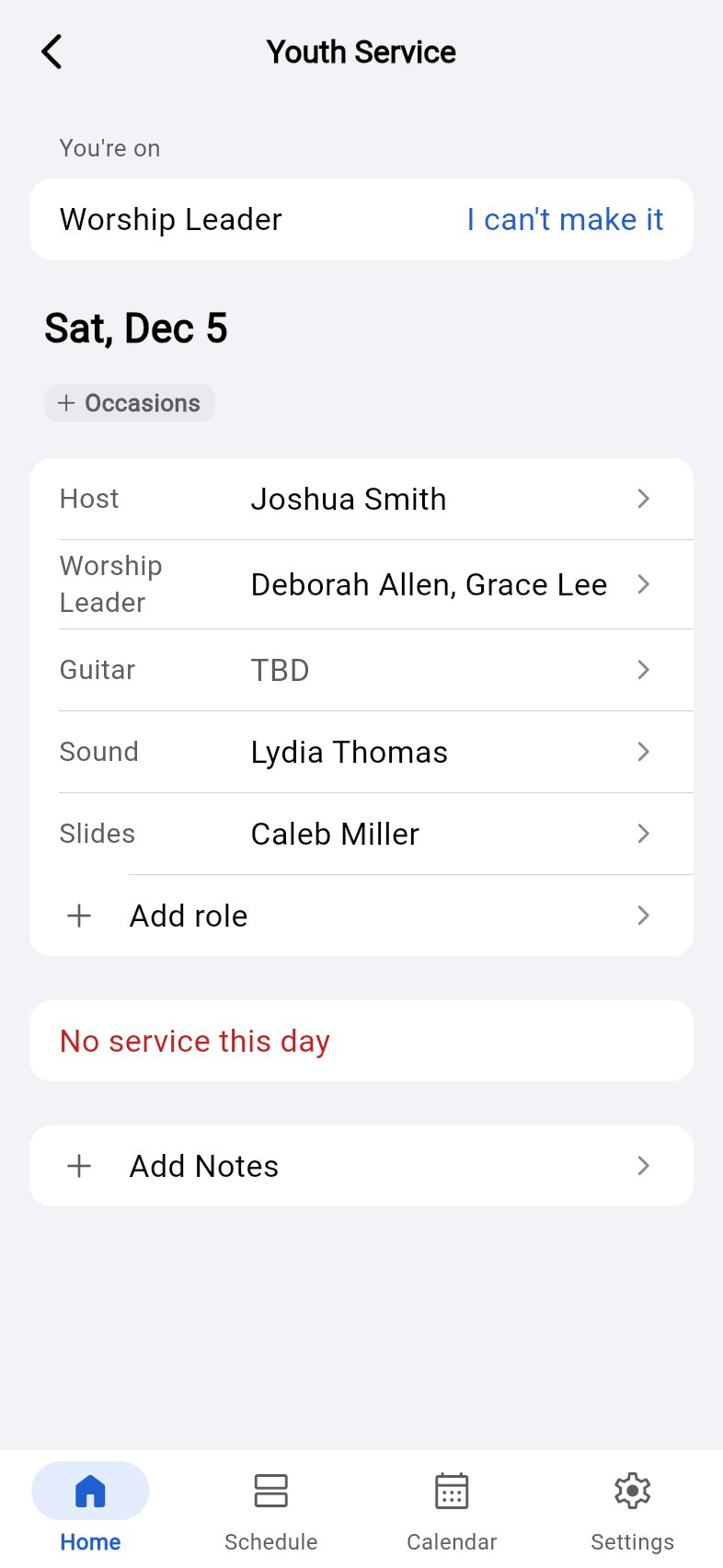
- It goes to the team members on that role’s list who are free that day, one notification each. Whoever taps I’ll do it first takes it. The schedule changes to their name, and you and the lead are both notified.
- Until someone takes it, you’re still on the schedule. Your row says Asked for a cover; nobody has taken it yet. If you no longer need it, tap Take back.
- If nobody else on the list is free that day, the leads and the others serving that day are told you can’t make it instead. You stay on the schedule, and they sort it out.
- If nobody has taken it three days before, the lead is notified.
Swap with another week
Tap your own row on the schedule (it has ⋯ on the right) and choose Swap with another week. You’ll see the people on that role on later days. Tap one, and only that person is asked. If they tap Accept, the two days are swapped, and you and the lead are notified. If they tap Can’t, you’re notified too.
You can’t ask for a cover or swap on an event’s schedule or on a day that’s past. For those, talk to the lead.
When someone asks you
You get a notification, and Waiting on you shows up at the top of Home. Tap it to see which day and role. For a swap, it shows who takes which day.
- Tap I’ll do it (for a swap, Accept) and it’s done. That day’s schedule opens. Tapped it by mistake? Tap Undo right away.
- If you can’t, tap Can’t. Saying Can’t to a cover request doesn’t notify anyone, and others can still take it.
Days you can’t serve
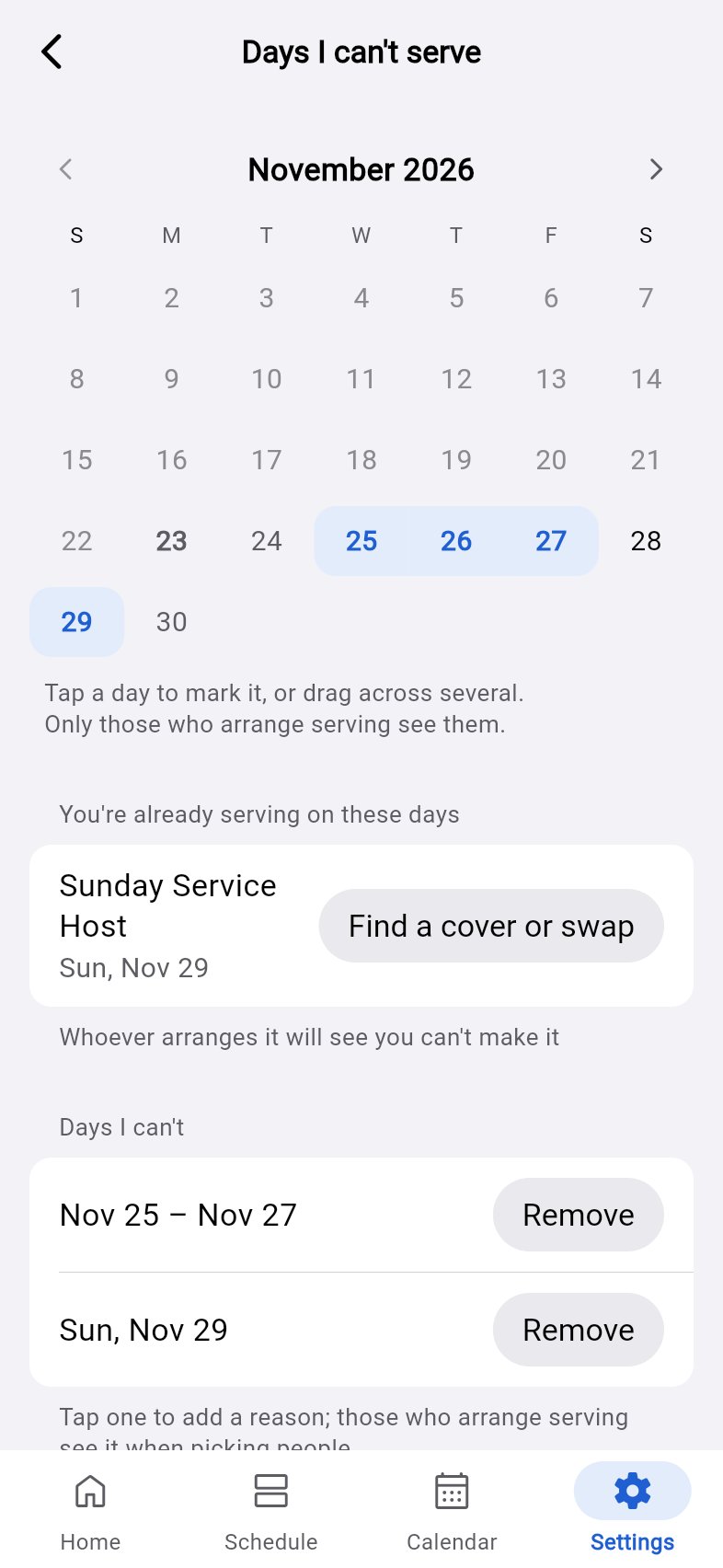
Go to Settings → Days I can’t serve. Tap a day to mark it, and tap again to clear it. Drag your finger across several days to mark them all at once. Each tap is saved right away. You can fill these in any time, without being asked.
- Days I can’t lists the days you marked. Tap one to add a reason, like a trip abroad.
- Only the people who arrange serving can see them. When they schedule, your name still shows, with Can’t serve this day.
- A day you’re already scheduled on doesn’t get marked when you tap it; you’re asked whether to Find a cover or swap. If you’re scheduled on a day after marking it, it’s listed under You’re already serving on these days. Tap Find a cover or swap next to it.
Before arranging serving, a lead may ask everyone to fill these in. You get a notification, and Home shows Mark days you can’t serve, with the months to fill in on the right, like Dec–Jan. Tap it to open on that month. Mark your days, then tap Send at the bottom. If you can serve on every day in those months, the button says I can serve every day. Tap it the same way. Once you’ve sent it, the row on Home goes away. You can still change your days later, and there’s no need to send again.
More
- Notifications: You’re notified when you’re put on or taken off serving, or when someone asks you to cover. Not getting them, or want to change when serving reminders come? See Not getting notifications?
- Calendar: If your church has connected a calendar, the top right of Calendar says Related to me: the whole church’s events, events of the services and small groups you’re in, and events you’re serving at. Tap it and pick All to see every event.
- Serving at another church too: Join with that church’s invite link, then go to Settings → Church info and tap Switch church.
- Leaving the church: Go to Settings → Church info, tap Leave church, then tap Leave church again. To come back, you’ll need a new invite.